Here’s something that not everyone knows. Not all coax cable outlets actually have an active signal. Testing your coax outlets is a pre-setup and troubleshooting step for your Cable Internet. It’s not enough to trust that your cable Internet signal is distributed throughout your home, to every coax outlet, from your Internet Service Provider (ISP). While this absolutely may be the case, it isn’t guaranteed for everyone.
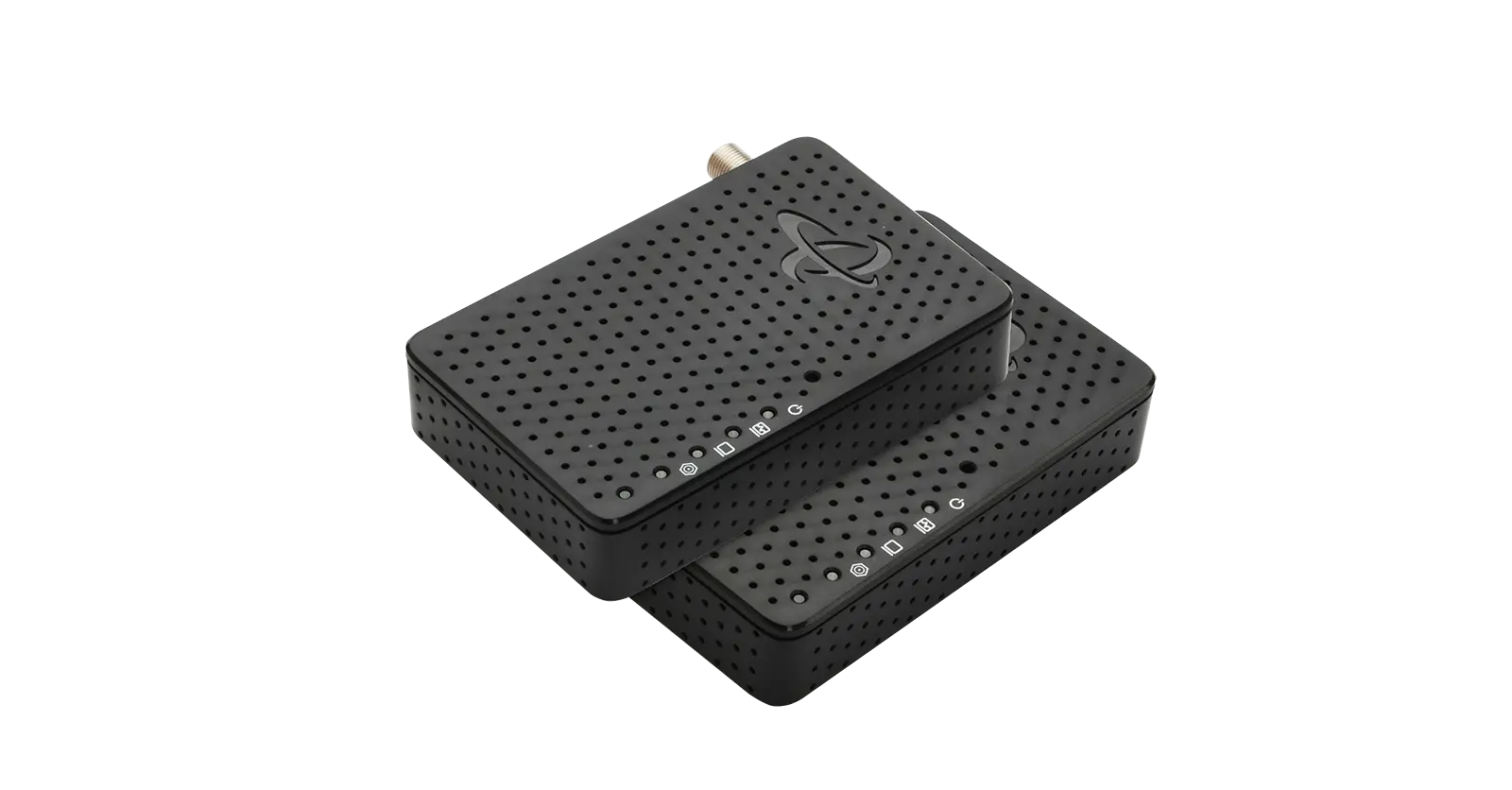
So that’s why you test! Fortunately, to test your coax outlets is super easy. To locate your broadband Internet signal doesn’t require an expensive tool or complicated multimeter testing. It takes one small tool like Hitron’s DSS01 Coax Cable Tester and one step that take a few seconds.
How to Run the Coax Cable Signal Test
One step: Take your DSS01 tester and plug it into the coax outlet you want to test. Press the button on the device and wait for the indicator lights. Green means a valid Internet signal is detected. Red means no signal detected.
That’s it. The DSS01 instantly, and accurately detects valid Cable Internet signals on coax wiring or coax outlets. The device does by scanning a specific range of frequencies on the coax wiring to detect the cable Internet signal. Unlike other tools on the market that detect “resistance”, the DSS01 is specifically designed to detect Cable Internet signals. Plus, you get the results you need in less than 10 seconds! No more tracing cables or splitters, no more carrying around expensive equipment!
Once you identify that your coax outlets work, you can plug in your new cable modem or you can continue troubleshooting your Internet connection. By testing your coax wiring, you can rule out if the issue is with your coax wiring or if you need to focus your troubleshooting on your cable modem.
What makes the DSS01 different from other coax signal testers?
Hitron developed the DSS01 Coax Cable Tester with one of North America’s largest Cable Internet Provider, who uses this same tool today for their professional Field Technicians. Hitron created a patent-pending test methodology to accurately detect valid Cable Internet signals on coax wiring and at coax outlets. So, you can trust the results and know they are accurate.
You can get Hitron’s DSS01 on Amazon today and start testing your coaxial cable connection for yourself, saving yourself time and the hassle of waiting for a Technician.
For more articles about testing your cable Internet signal, check out Hitron’s Learn page or check out Hitron’s Blog.