You finally decide to connect more of your home to Ethernet. Your desktop computer performs better with a wired connection. Your gaming console gets lower latency. Your smart TV streams more reliably. Maybe you’ve added a NAS, printer, or WiFi access point.
Then you look at the back of your router and realize there’s a problem.
It only has four Ethernet ports—or maybe even fewer.
If you’ve wondered why routers don’t include more Ethernet ports, you’re not alone. Fortunately, there’s an easy solution that doesn’t require replacing your router or changing your internet service.
Most Home Routers Are Designed for Typical Households
A router has one primary job: connecting your home network to the internet while directing traffic between your devices.
Most consumer routers include only a small number of built-in Ethernet ports because manufacturers assume that many devices will connect using WiFi instead.
A typical home router often includes:
- One Internet (WAN) port
- Four Ethernet (LAN) ports
- Built-in WiFi
For many households, that’s enough.
But today’s homes often contain far more wired devices than they did just a few years ago.
Why You May Need More Ethernet Ports
Many devices work best when connected with Ethernet instead of WiFi, including:
- Desktop PCs
- Gaming consoles
- Smart TVs
- Network Attached Storage (NAS)
- Security camera recorders
- Streaming devices
- VoIP phones
- Additional WiFi access points
- Smart home hubs
As your network grows, those four ports disappear quickly.
For example:
Device
Ethernet Port Used

Suddenly, you’ve run out of available connections.
Why Router Manufacturers Don’t Simply Add More Ports
It might seem logical to build routers with eight or twelve Ethernet ports, but there are practical reasons why most don’t.
1. Cost
Every additional Ethernet port increases manufacturing costs.
Many buyers never use more than a few wired devices, so adding extra ports would make routers more expensive for everyone.
2. Physical Size
More ports require a larger enclosure.
Most home networking equipment is designed to remain compact and fit neatly on a shelf or desk.
3. Different Jobs
Routers and Ethernet switches serve different purposes.
A router connects your home to the internet.
An Ethernet switch expands your local wired network.
Instead of combining both into one larger device, manufacturers let homeowners add switching capacity only if they need it.
Why Routers Have Limited Ethernet Ports

Lower Cost
Every additional post adds cost. Fewer ports keep routers affordable.

Smaller Size
More ports require more space. Fewer ports keep routers compact and easy to place.
Most Devices Use WiFi
Phones, laptops, tablets, and smart devices usually connect wirelessly—so fewer wired ports needed.

Ethernet Switches Handle Expansion
When you need more wired connections, an Ethernet switch easily expands your network without replacing your router.
The Simple Solution: Add an Ethernet Switch
An Ethernet switch connects to one Ethernet port on your router and instantly creates several additional ports.
Instead of replacing your router, you simply expand your wired network.
The setup is surprisingly simple:
Ethernet Switch Simple Setup

Router vs Ethernet Switch
Two different devices. Two important jobs.
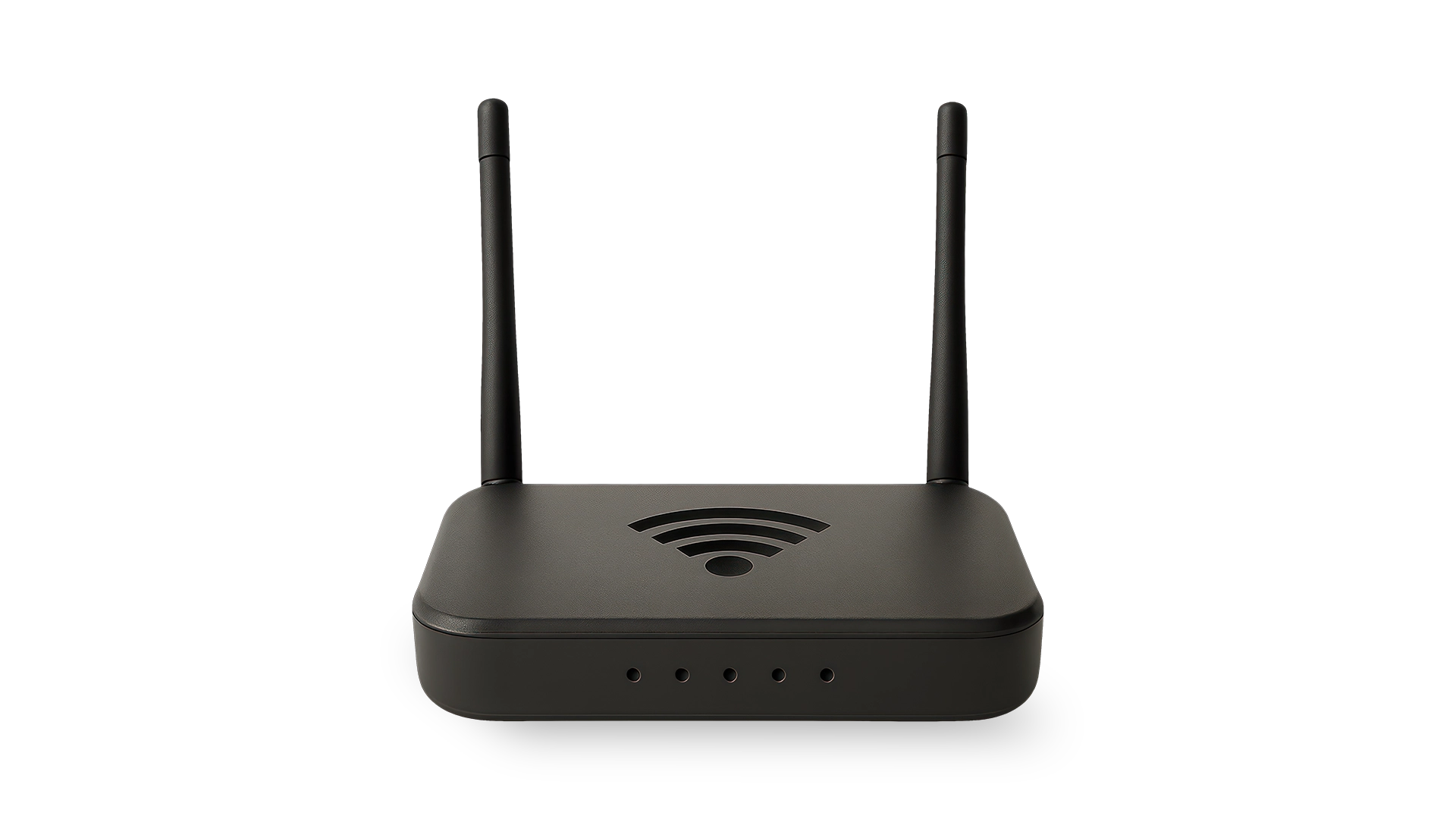
Router
The router is the gateway to the Internet and creates your home or office network.

Connects to the Internet
Links your home or office to your Internet Service Provider (ISP).
Creates your home network
Assigns IP addresses and manages traffic between devices and the Internet.
Often includes WiFi
Many routers have built-in WiFi for wireless devices.
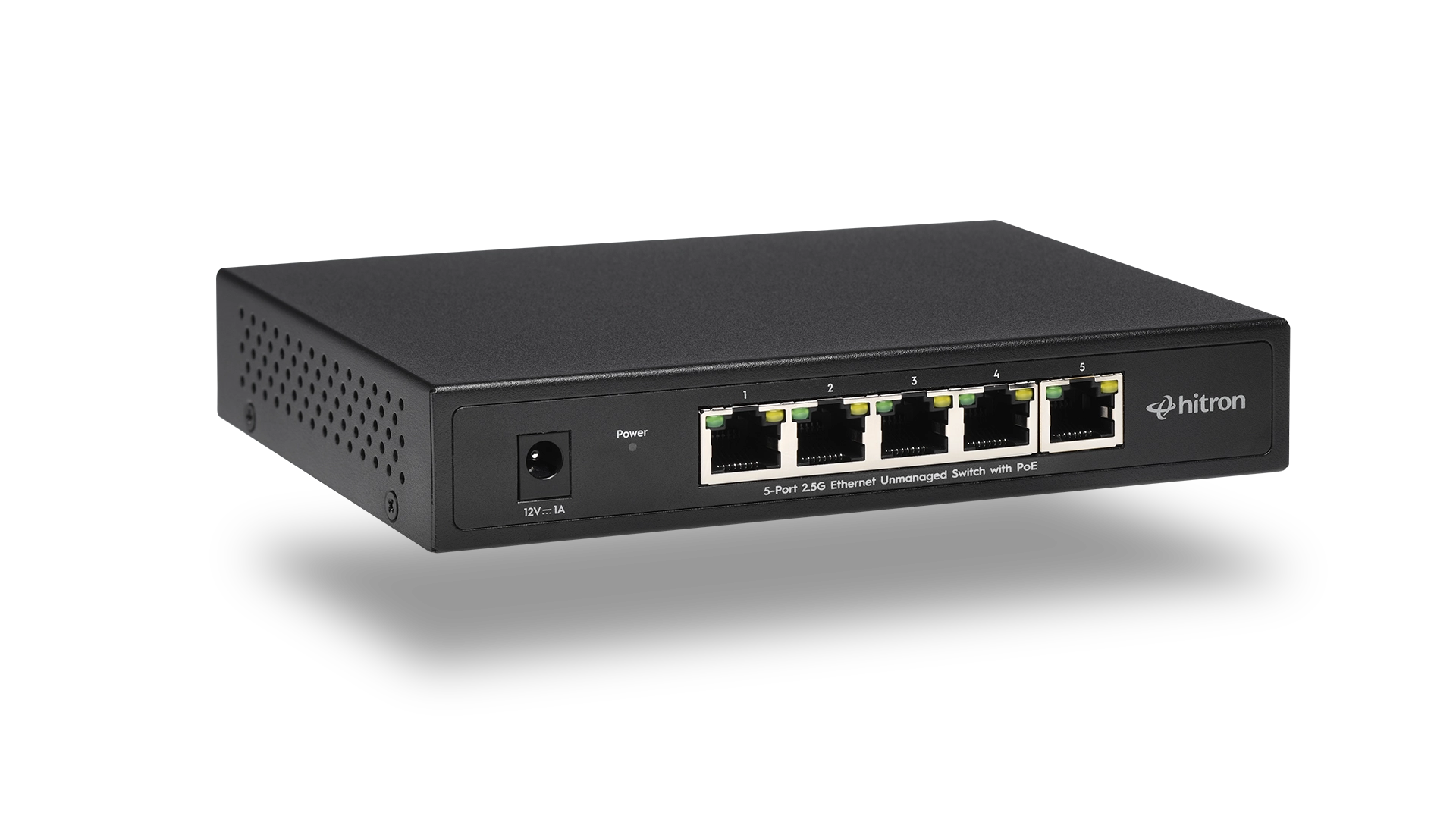
Ethernet Switch
The Ethernet switch expands your wired network by adding more ports for your devices.
Expands your wired network
Adds multiple Ethernet ports so more devices can connect.

Adds more Ethernet ports
Increases the number of wired connections available on your network.

Connects wired devices
Designed to connect devices like Desktops, Smart TVs, Gaming Consoles, NAS and Printers.

Works Better Together
For the best network setup, connect an Ethernet switch to your router to expand your wired connections.
The router continues managing your internet connection while the switch handles communication between your wired devices.
Most unmanaged Ethernet switches begin working immediately after you plug them in.
No software.
No configuration.
No special networking knowledge.
Does an Ethernet Switch Slow Down Your Internet?
This is one of the most common questions people ask.
In almost every home network, the answer is no.
An Ethernet switch doesn’t divide your internet speed equally among every connected device.
Instead, it intelligently forwards data only where it’s needed.
For example:
- Your desktop can download a large file.
- Your smart TV can stream a movie.
- Your NAS can back up files.
- Your gaming console can play online.
The switch manages all of this simultaneously without creating unnecessary traffic between devices.
Your overall internet experience is usually limited by your internet service plan—not by adding a switch.
How Many Ports Should You Choose?
The best switch depends on both your current devices and what you expect to add in the future.
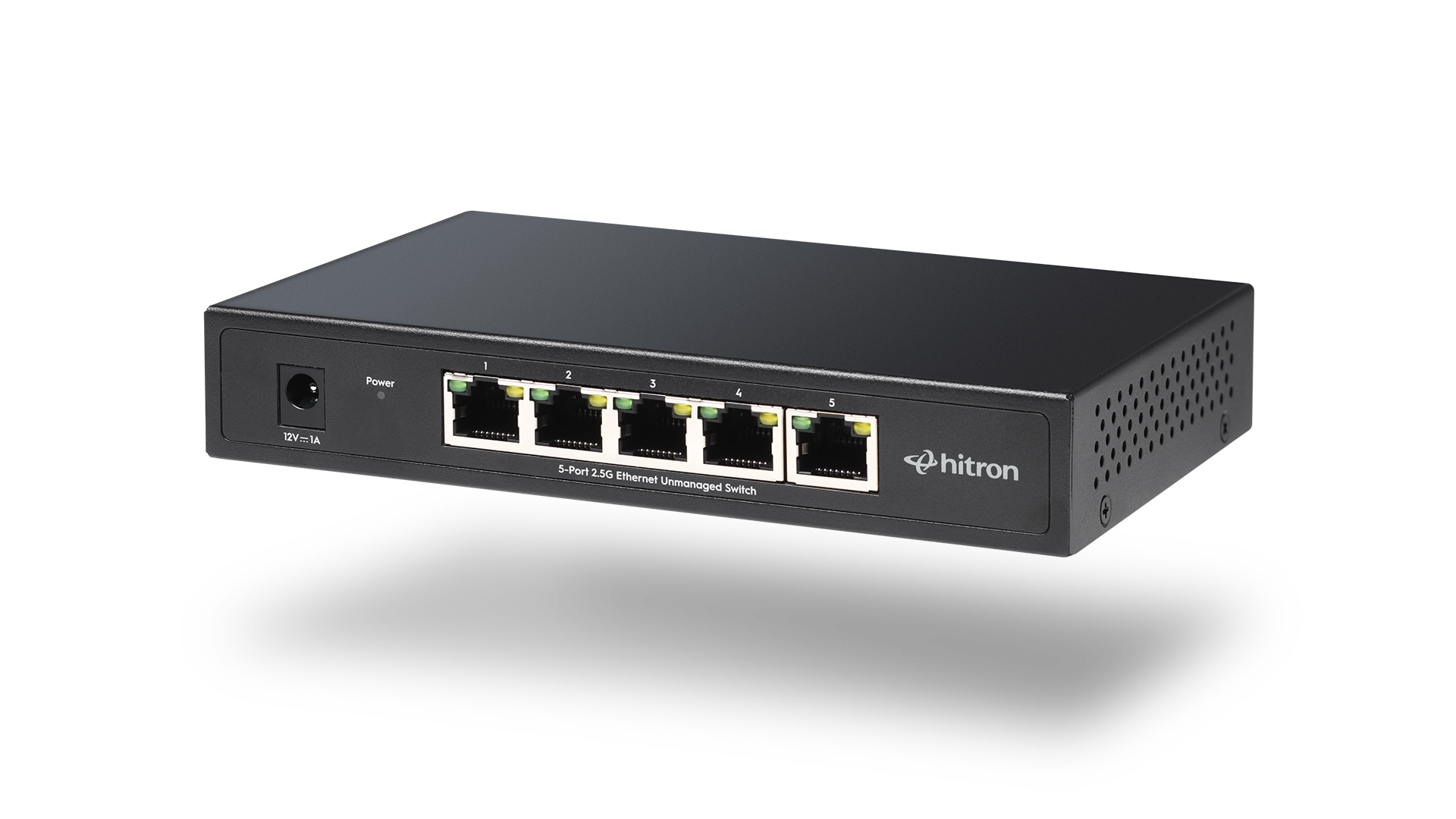
A 5-Port Switch
A 5-port switch, like Hitron’s APEX2005 2.5 Gigabit Ethernet Switch, is ideal if you only need a few additional wired connections.
Good for:
- Desktop computer
- Gaming console
- Smart TV
- Printer
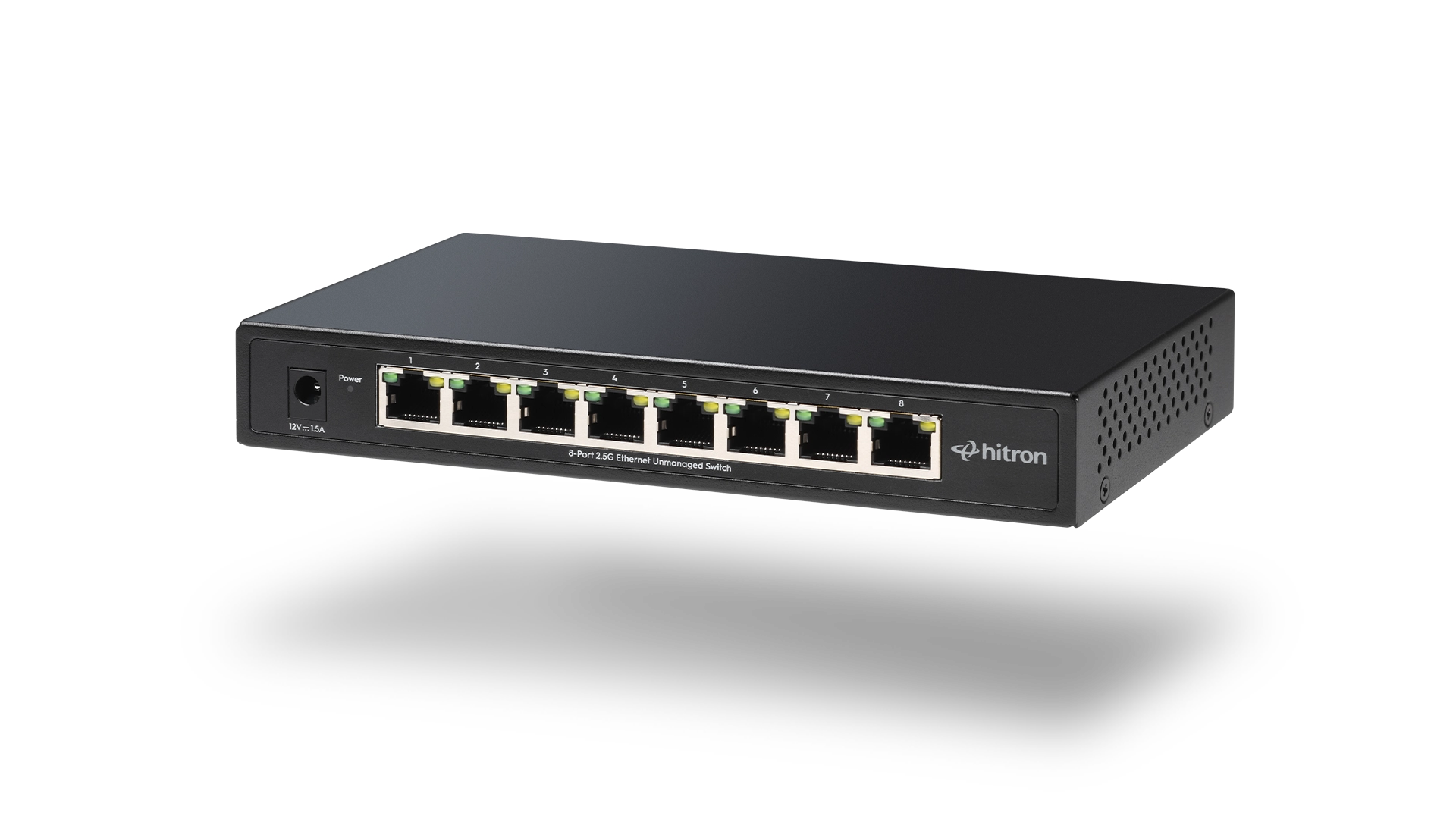
An 8-Port Switch
An 8-port, such as Hitron’s APEX2008 2.5 Gigabit Ethernet Switch, switch provides more flexibility as your network grows.
It’s often a better long-term investment if you expect to add:
- NAS storage
- Security cameras
- Additional access points
- More gaming systems
- Home office equipment
5-Port vs 8-Port Ethernet Switch
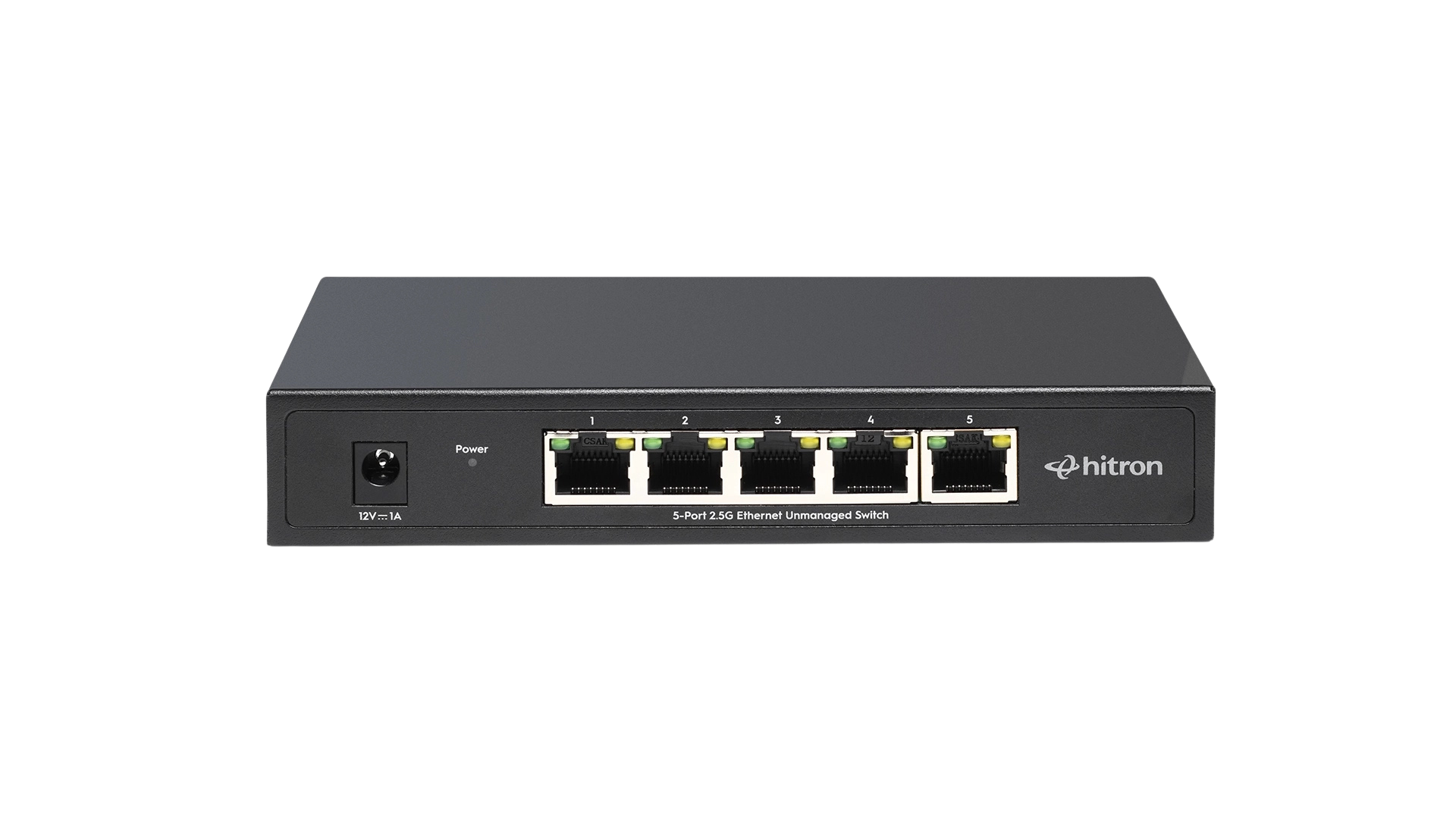
5-Port Ethernet Switch
Best For: Small Homes, Apartments

Desktop

Smart TV

Gaming Console

Printer
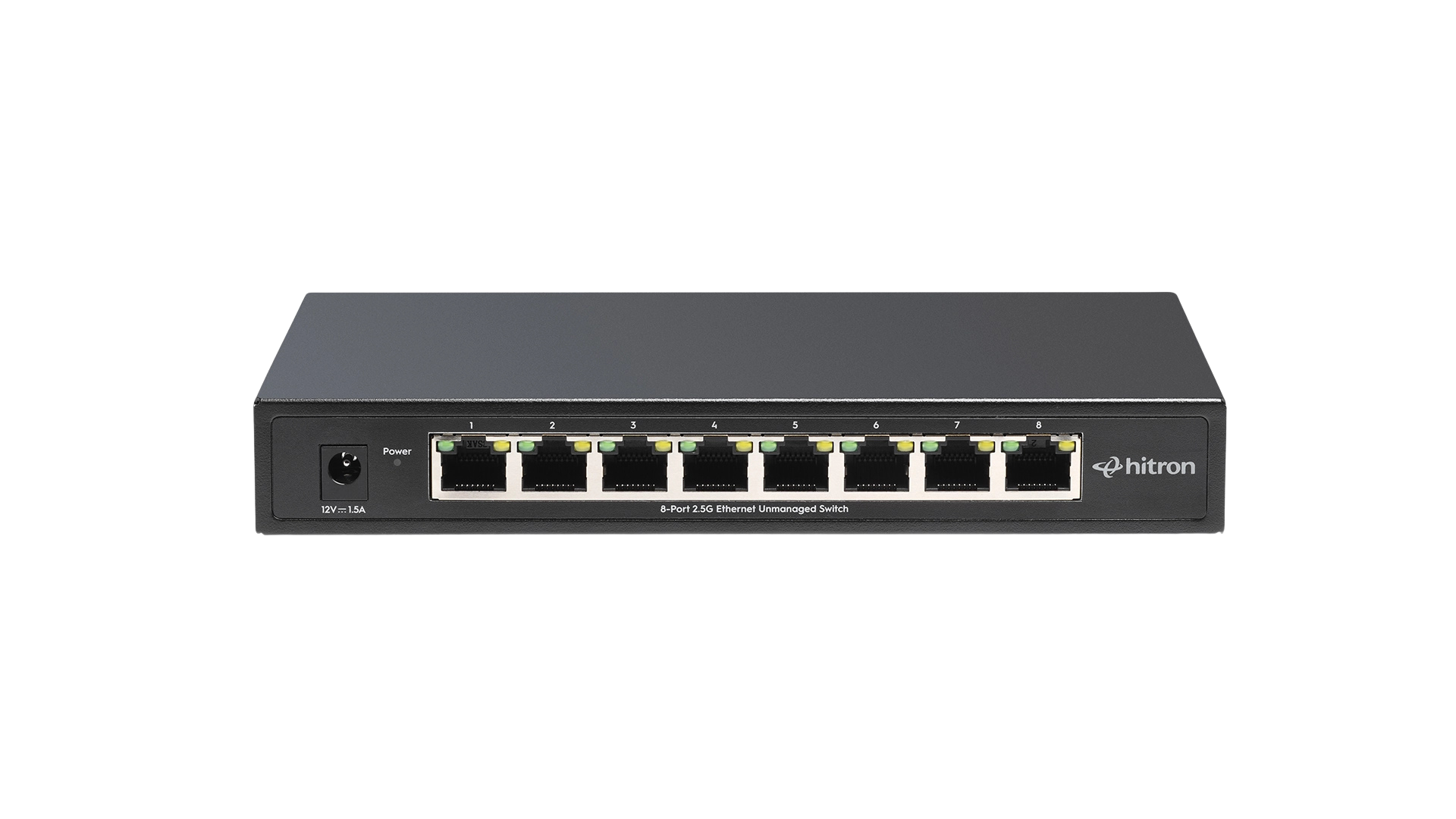
8-Port Ethernet Switch
Best For: Medium to Large Homes, Home Offices
Desktop

Smart TV

Gaming Console

Security Camera
WiFi Access Point

Printer
Choosing a slightly larger switch today often prevents needing another upgrade later.
If you’re unsure which size fits your needs, our Evergreen guide “5-Port vs. 8-Port Ethernet Switch: Which One Should You Choose?“ explains the differences in more detail.
When Should You Consider a 2.5 Gigabit Switch?
If your internet plan exceeds 1 Gbps, or you regularly transfer large files between computers or NAS devices, a 2.5 Gigabit Ethernet switch can provide additional bandwidth throughout your wired network.
While many homes still use Gigabit Ethernet successfully, faster internet plans and high-performance local networks are making multi-gig switches increasingly popular.
Plug-and-Play Makes Expansion Easy
Many homeowners worry they’ll need to configure network settings after adding a switch.
Fortunately, that’s usually not the case.
An unmanaged Ethernet switch automatically:
- Detects connected devices
- Negotiates the best connection speed
- Forwards traffic efficiently
- Begins operating immediately after being connected
For most homes and small offices, installation takes only a few minutes.
Choosing the Right Ethernet Switch
If you simply need more wired ports, an unmanaged Ethernet switch is usually the easiest solution.
For example, Hitron’s APEX2005 and APEX2008 unmanaged 2.5 Gigabit Ethernet switches provide fast wired expansion with plug-and-play installation, making them ideal for connecting desktops, gaming consoles, smart TVs, NAS devices, and other Ethernet-enabled equipment.
FAQs
Can I connect multiple Ethernet switches together?
Does an Ethernet switch replace my router?
Is installing an Ethernet switch difficult?
Can I use all the ports at the same time?
If you’d like to learn more about how Ethernet switches work and why they’re one of the easiest ways to expand a wired network, read our Evergreen guide “What Is an Ethernet Switch and How Does It Work?” It explains how switches intelligently direct network traffic, improve wired connectivity, and help build a faster, more reliable home network.