You finally have a dedicated home office.
The desk is set up. The monitors are mounted. The lighting is right. The chair is comfortable.
But there is one thing many remote workers overlook:
The network.
A surprising number of home offices are designed around furniture placement rather than connectivity. The office ends up in the spare bedroom, basement, bonus room, or converted dining room because the space is available, not because it’s the best location for network performance.
Months later, the symptoms begin to appear.
Video calls freeze.
Cloud files take longer to sync.
Large uploads crawl.
The VPN disconnects at inconvenient times.
The Internet itself may be perfectly fine. The problem is often that the workspace was never designed around the network.
If you’re building or upgrading a home office, creating a reliable wired connection should be one of the first considerations.
For many remote workers, the best setup is a direct Ethernet connection between the router and the office. A wired connection provides predictable performance for work applications that rely on constant communication, such as video conferencing, cloud collaboration tools, and remote desktop software.
Most Home Networks Are Built for Entertainment
Think about how the average home uses the Internet.
Streaming services, social media, web browsing, smart TVs, gaming consoles, and mobile devices make up most of the daily traffic.
These activities are relatively forgiving.
If a movie buffers for a few seconds, it’s annoying but manageable.
Work applications are different.
A video conference can’t pause and catch up later.
A remote desktop session can’t buffer ahead.
A cloud-based application expects a continuous connection while you’re actively working.
This is one reason why a network that feels perfectly adequate after work hours may feel frustrating during the workday.
Where Is Your Router Located?
One of the most overlooked home office decisions is office location relative to the router.
Many homeowners place their router where Internet service enters the house.
That location may be:
- A utility room
- A basement
- A media cabinet
- A corner of the home
The office may be two floors away.
Every wall, floor, and obstacle between the router and workspace creates another potential point of signal degradation.
Before investing in new networking equipment, ask a simple question:
How far is the office from the router?
The answer often reveals why connectivity problems occur in the first place.
Why Distance Matters More Than Most People Realize
Most people think their computer connects directly to the Internet.
In reality, every task you perform travels through several parts of your home network before it ever reaches the Internet.
The Hidden Path
Between you work and the internet
When your connection slows down, the problem could be anywhere along the path.
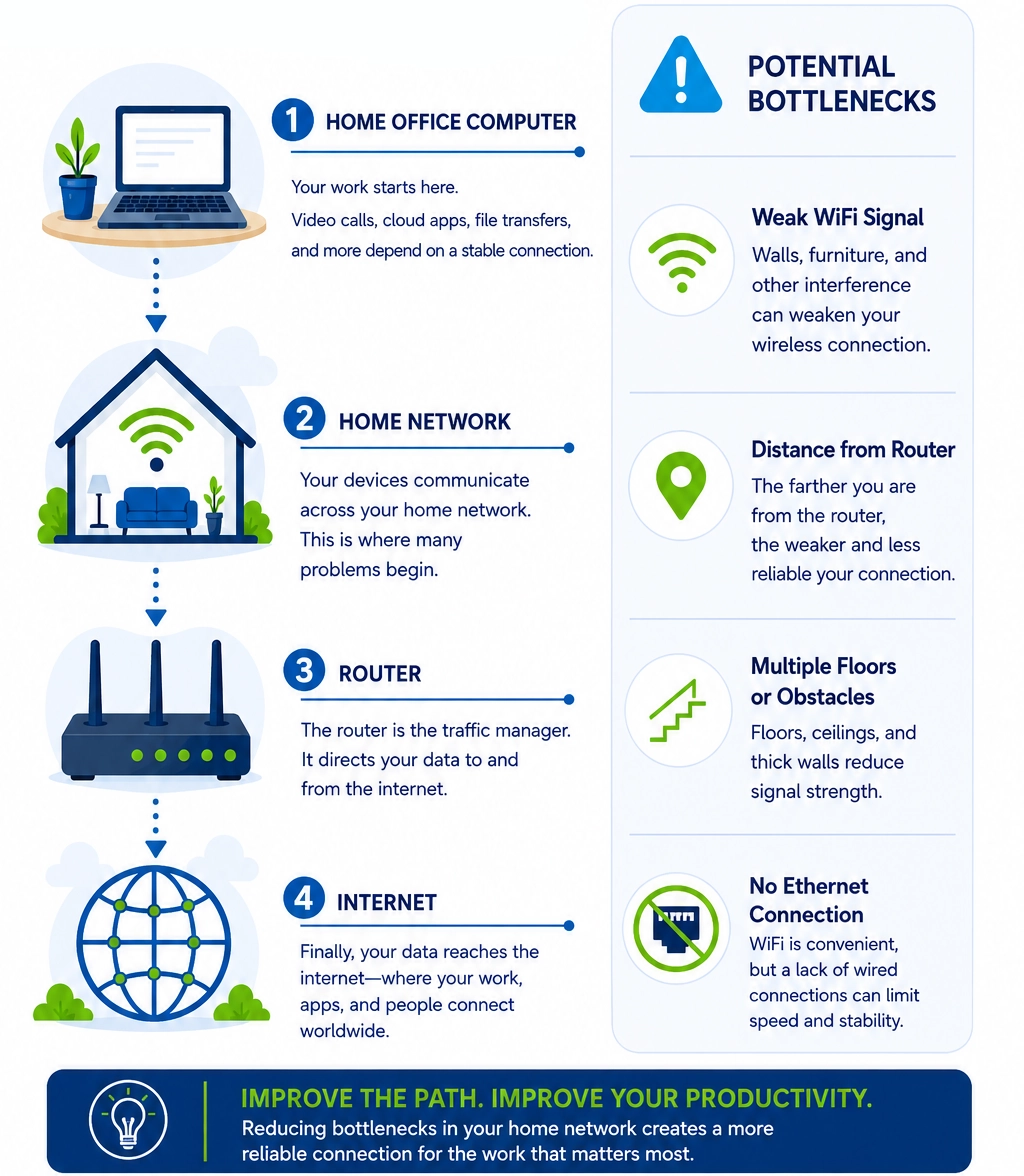
When a video call freezes or a cloud application becomes unresponsive, the problem can occur anywhere along this path. Understanding these connections helps explain why office location and network design have such a large impact on productivity.
The Best Home Office Setups Minimize Network Hops
In networking, every additional step between your device and the router creates another opportunity for problems.
For example:
Laptop → WiFi Extender → WiFi Router
contains more variables than:
Laptop → Ethernet → Router
The goal isn’t necessarily maximum speed.
The goal is reducing complexity.
More Hops. More Variables.
More things that can go wrong
Every step between you and the internet introduces potential delays, interference, and points of failure. Fewer hops mean a more stable, predictable connection—so your work stays on track.
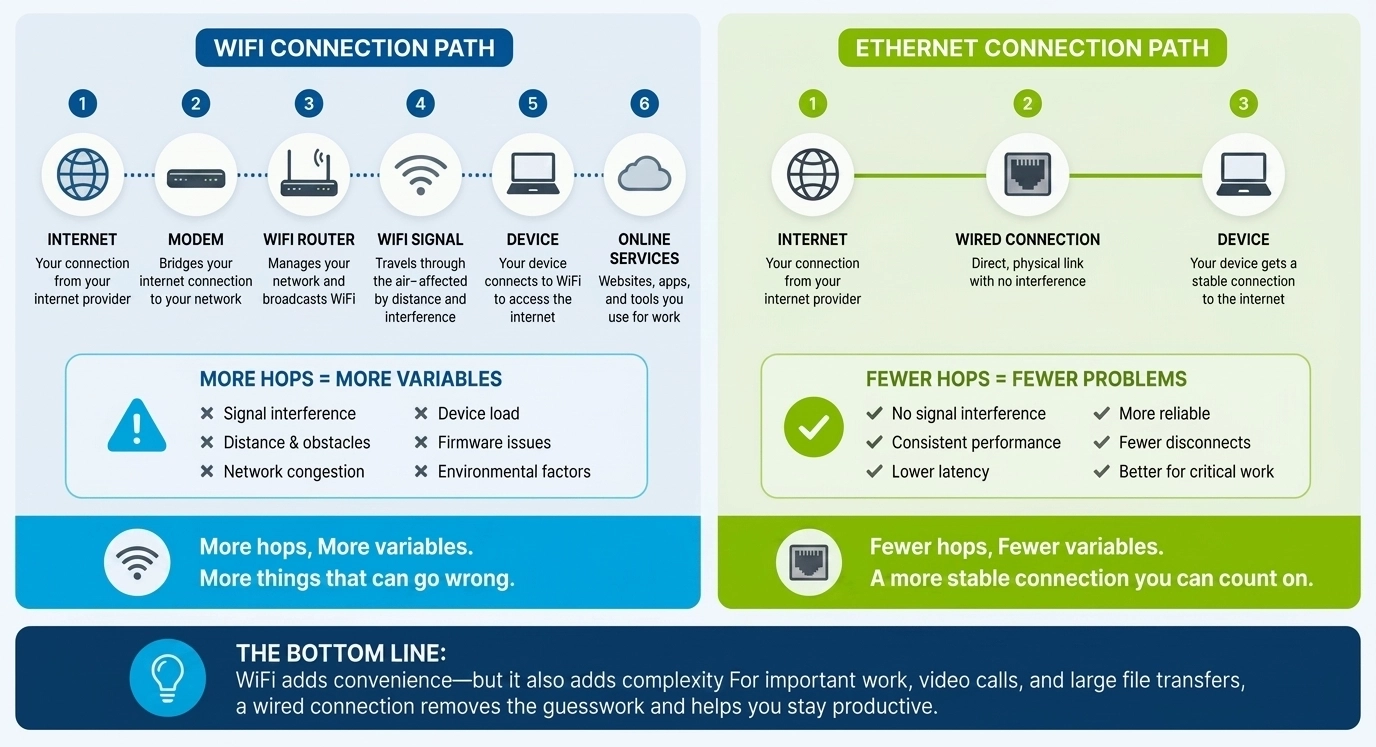
The simpler the connection path, the easier it becomes to maintain consistent performance throughout the workday.
This is one reason businesses continue to rely heavily on wired networking for critical workstations.
Think Beyond Your Laptop
A productive home office often contains more connected devices than people realize.
You may have:
- A work laptop
- A desktop computer
- A VoIP phone
- A network printer
- A docking station
- Network storage
- A second workstation
As these devices accumulate, networking requirements change.
A wired connection can help create a more stable foundation for an office that relies on multiple connected devices throughout the day.
What If Ethernet Isn’t Available in the Office?
This is where many homeowners hit a wall.
The ideal wired connection may exist in theory, but there is no Ethernet jack in the room.
Running new Ethernet cable can be expensive and disruptive, especially in finished homes.
Fortunately, Ethernet isn’t the only wiring that may already connect different rooms.
Many homes contain coaxial cable outlets originally installed for television service. In some situations, that existing infrastructure can be repurposed to support a wired network connection.
Technology known as MoCA uses coaxial cable to carry network traffic between rooms, allowing homeowners to extend wired connectivity without opening walls or running new Ethernet cable. If you’re unfamiliar with the technology, What Is MoCA? explains how it works and why many homeowners use it to create wired network connections using existing coax wiring.
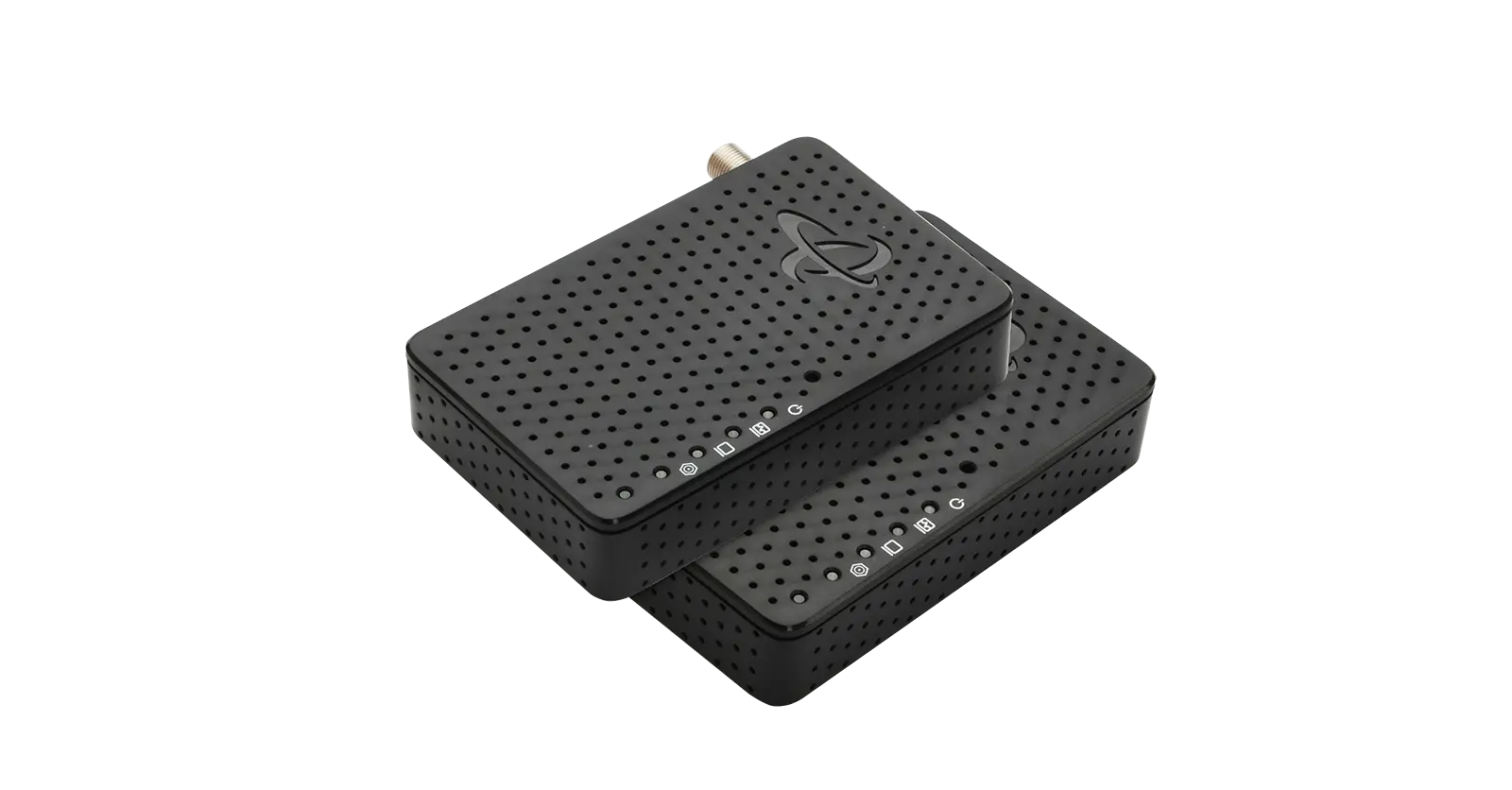
For offices located far from the router, MoCA adapters such as Hitron’s HTEM5 can provide an alternative way to create a wired connection using existing coax outlets.
Choosing the Right Home Office Location
If you’re planning a new workspace, networking should be part of the decision-making process.
Ask yourself:
- Is the office close to the router?
- Is Ethernet available?
- Is coax wiring available?
- Will multiple devices require network access?
- Will the space support future growth?
These considerations are often easier and less expensive to address before the office is fully set up.
FAQs
Is a wired connection worth it for a home office?
For many remote workers, yes. A wired connection can provide more predictable performance for video conferencing, cloud applications, and file transfers than relying solely on wireless connectivity.
Should my router be located in my office?
Not necessarily. However, the closer the office is to the router or a wired network connection, the easier it is to maintain consistent performance.
What if my office doesn't have an Ethernet port?
Some homeowners use existing coax wiring and MoCA Adapters to extend wired network connectivity to rooms where Ethernet cabling is unavailable.
How many devices should be wired in a home office?
Devices that are critical to your daily work, such as desktop computers, VoIP phones, and network storage devices, often benefit most from wired connections.
Is a WiFi extender the same as a wired connection?
No. A WiFi extender still relies on wireless communication. A wired connection removes many of the limitations associated with wireless signal coverage and interference.
Build Your Workspace Around Productivity
A home office is more than a desk and a computer. It’s a workspace that depends on reliable connectivity throughout the day.
When planning your office, think beyond Internet speed and consider how your devices connect to the network. The best wired home office setups are often the ones that minimize complexity, reduce connectivity variables, and provide a stable foundation for remote work.
If your office doesn’t have Ethernet available, learn how existing coax wiring may help create a wired connection in our guide: How Do I Convert Coaxial Cable into Ethernet?