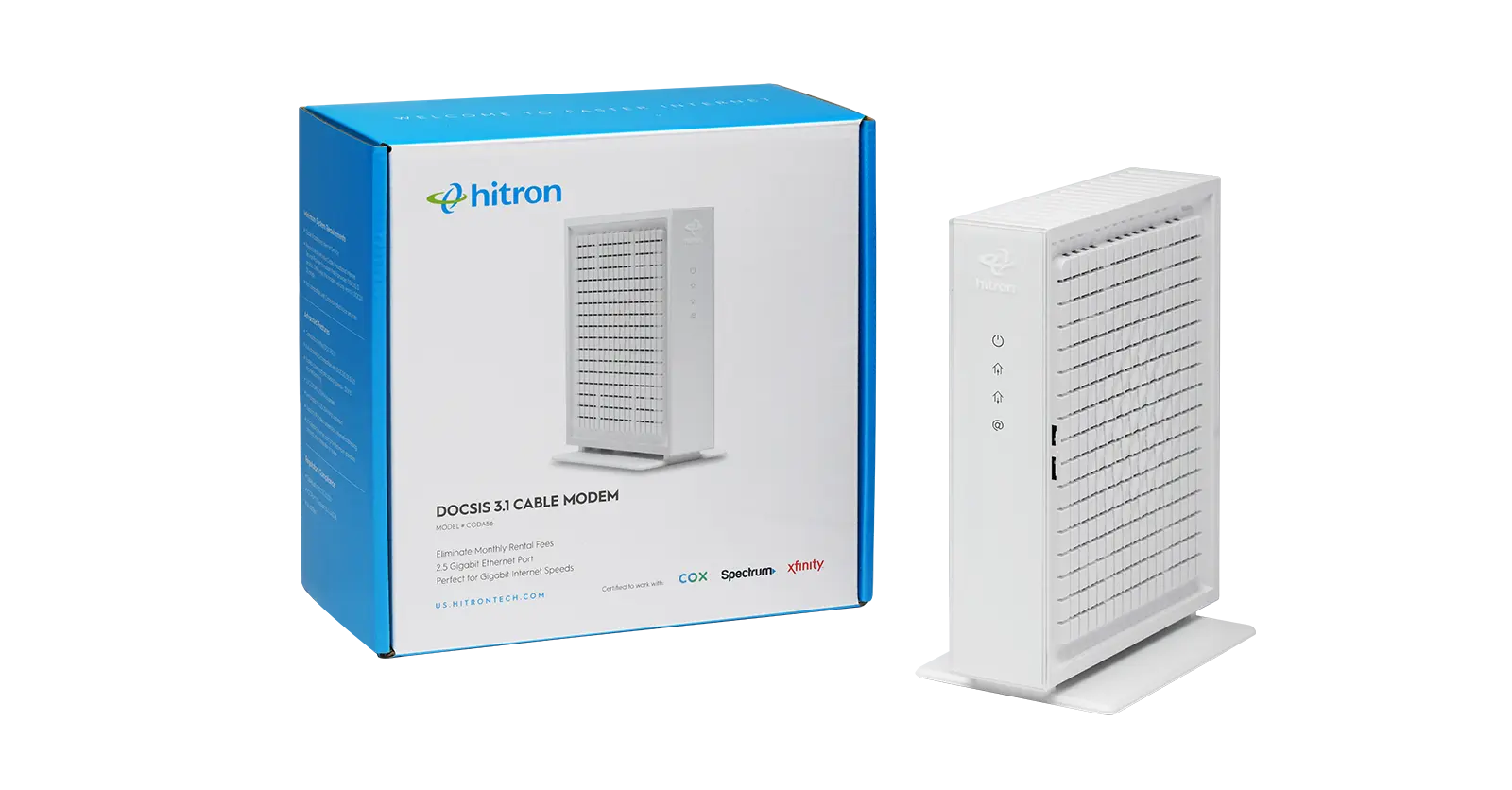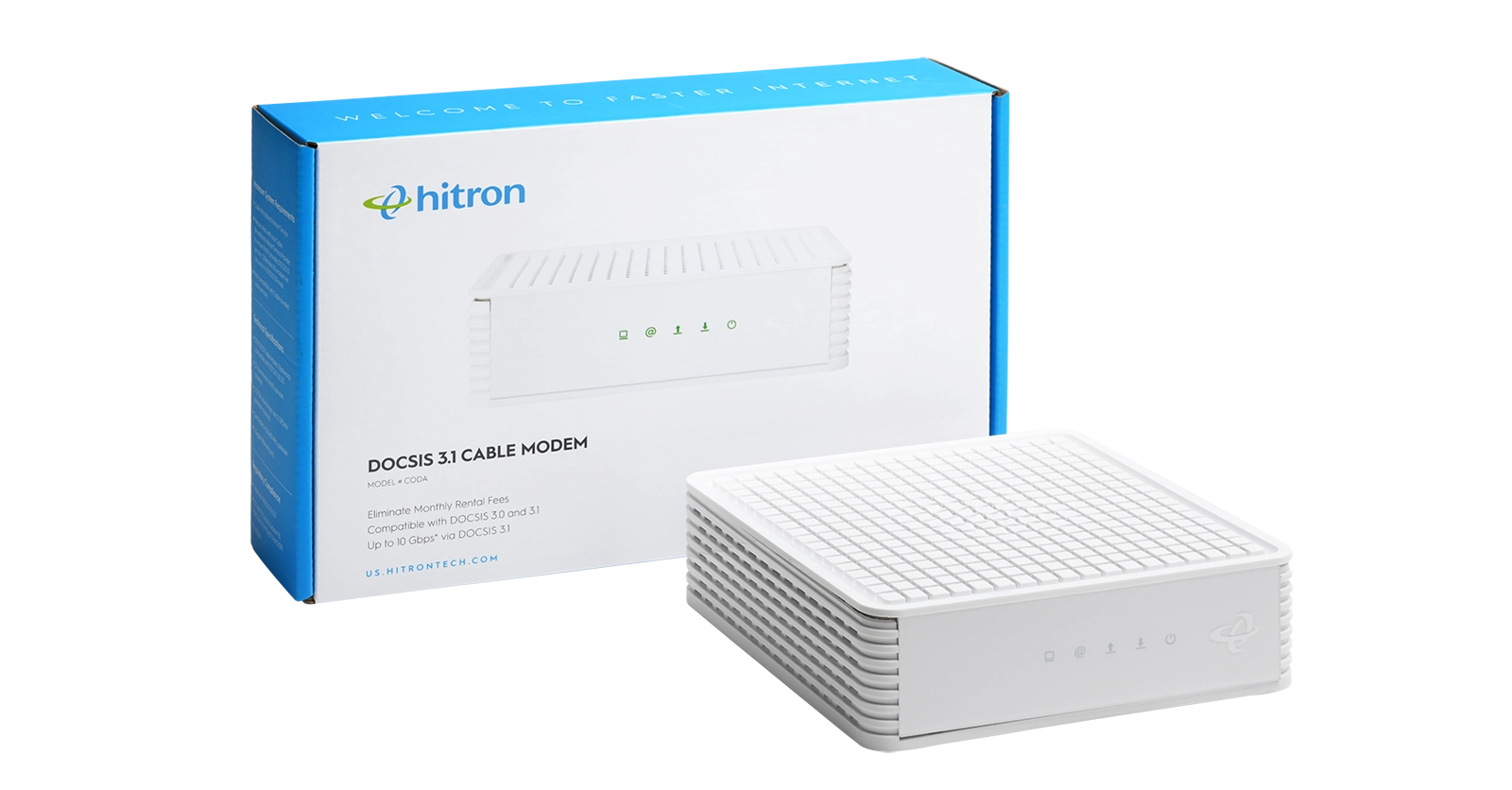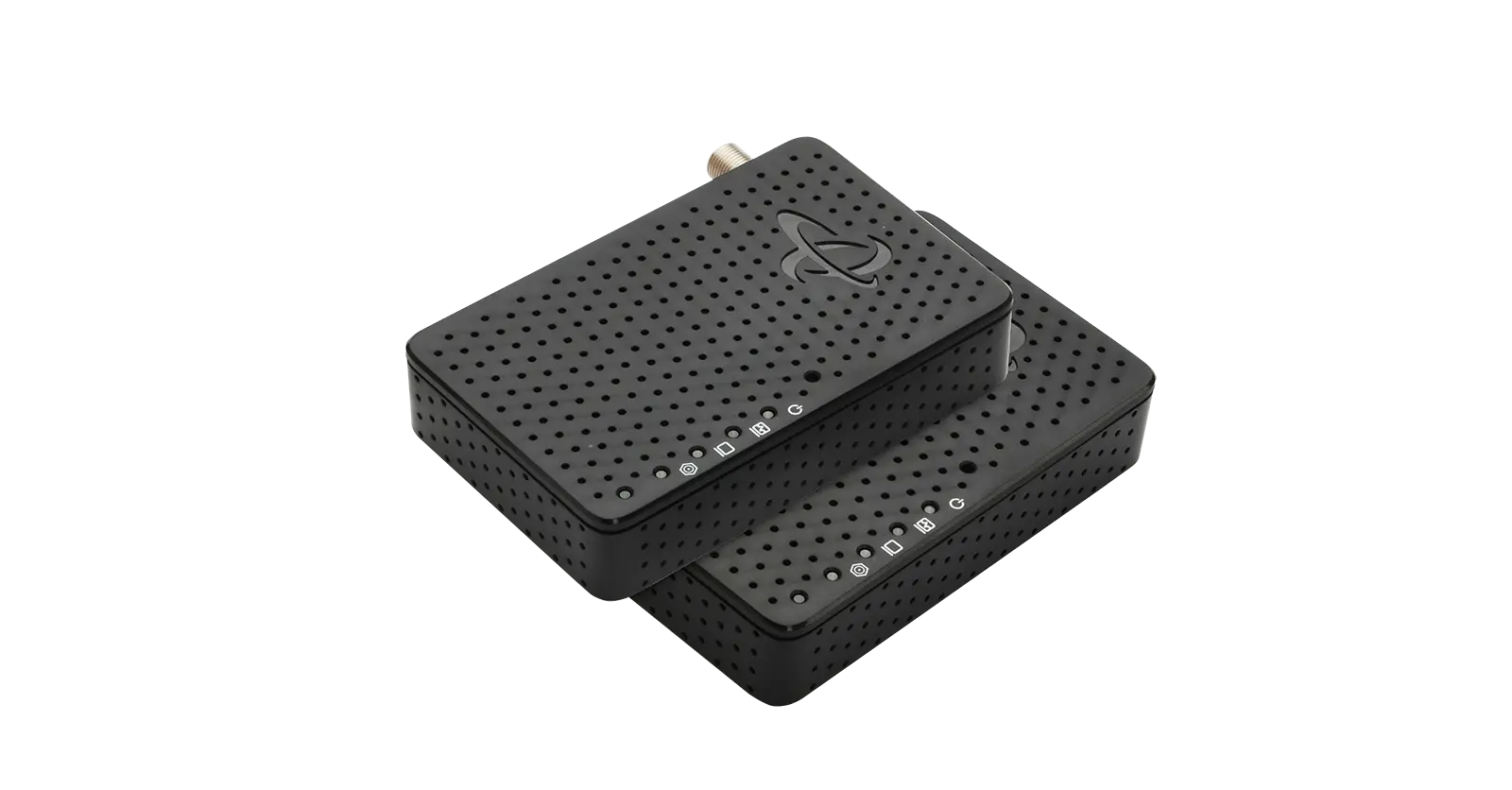
Do you ever experience slow internet or WiFi “not-spots” in your home? A poor internet connection can be incredibly frustrating, and may be an indication that something is interfering with your internet connection – specifically, your cable modem router. Placement of your cable modem router in your home definitely matters. Where you place it can make a significant impact on the quality and reliability of your internet speeds and your WiFi connection.
Top 5 Mistakes to Avoid:
- Tucking your cable modem router in the corner of your basement or a far-off corner.
- Placing it inside or behind cabinets or furniture, or blocking the modem router vents.
- Placing your modem router on the floor or stacked on top of other equipment.
- Placing your modem router too close to any one of the following:
- Other wireless devices too close together
- Appliances
- Electronics using wireless frequencies
- Dense building materials such as metal, concrete or glass
- Placing your modem router too close to devices that transmit radio frequencies such as baby monitors, cordless phones
When finding a spot for it, follow these tips for the best results.
4 Key Tips to Getting a Better Connection:
- Choose a central location in your home, and up off of the floor. This brings your devices closer to your router when trying to connect.
- Keep your modem router visible and out in the open. Don’t put it inside or behind cabinets or furniture, and make sure the modem router vents are not blocked to prevent overheating.
- Place your modem router upright and elevated on a shelf or table where it’s off the floor to reduce interference.
- Avoid WiFi signal interference. Give plenty of space from the following:
- Other wireless devices
- Appliances such as Microwave ovens
- Wireless electronics
- Metal, concrete or glass
For more tips and information on cable modems and routers, check out our Complete Guide to Cable Modem Routers or Hitron’s Learn section.